

Canva Cheat Sheet: The Ultimate Beginner-to-Pro Guide
In today’s digital world, visual content plays a crucial role in marketing, branding, education, and social media growth. Whether you are a student, freelancer, entrepreneur, content creator, or digital marketer, Canva has become one of the most essential design tools available. If you want to create stunning designs quickly and professionally, this Canva Cheat Sheet will help you master the platform efficiently.
This comprehensive Canva Sheet covers everything from Canva basics to advanced tips, shortcuts, design principles, and productivity hacks. By the end of this guide, you’ll have a complete Cheat Sheet that can help you create better designs faster and improve your overall workflow.
What is Canva?
Canva is an online graphic design platform that enables users to create visual content without requiring advanced design skills. From social media posts and presentations to posters, flyers, resumes, and videos, Canva offers thousands of templates that make designing easy and accessible.
One of the main reasons Canva has become so popular is its user-friendly drag-and-drop interface. Even beginners can create professional-quality designs using the platform.
This Cheat Sheet is designed to help you understand Canva’s most useful features and become more productive while designing.
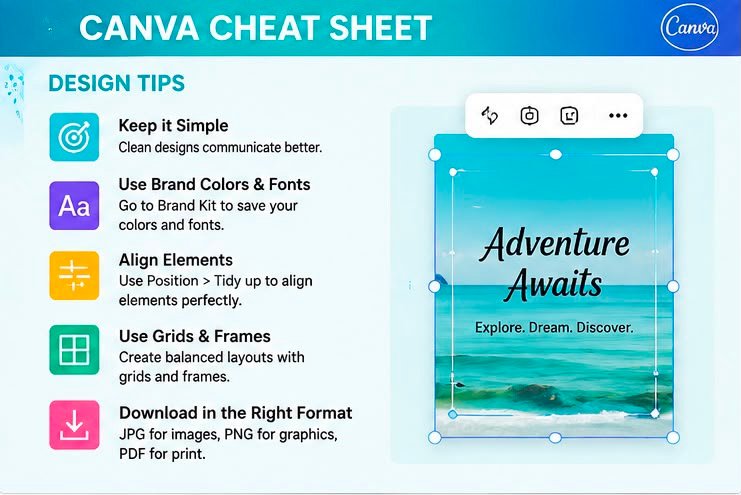
Why You Need a Canva Cheat Sheet
Many users spend hours searching for tools, templates, and shortcuts inside Canva. A well-organized Canva Cheat Sheet helps you:
- Save time while designing
- Improve design quality
- Learn Canva shortcuts
- Increase productivity
- Create professional-looking graphics
- Work more efficiently
Whether you’re designing social media posts or marketing materials, this Canva Cheat Sheet will make your work easier.
Canva Cheat Sheet: Essential Canva Dashboard Overview
Before creating designs, it is important to understand Canva’s dashboard.
Home Page
The Canva home page includes:
- Recent designs
- Brand kits
- Templates
- Projects
- Team collaboration tools
Search Bar
The search bar helps you find:
- Templates
- Photos
- Icons
- Videos
- Graphics
- Fonts
Using Canva’s search function effectively is one of the most valuable tips in this Canva Cheat Sheet.
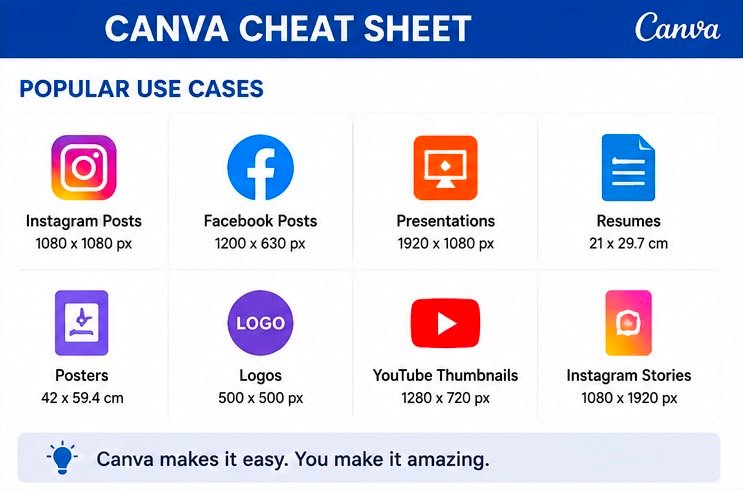
Canva Cheat Sheet for Design Sizes
Using the correct dimensions is critical for professional designs.
Social Media Sizes
Instagram Post
1080 × 1080 px
Instagram Story
1080 × 1920 px
Facebook Post
1200 × 630 px
YouTube Thumbnail
1280 × 720 px
LinkedIn Post
1200 × 1200 px
Pinterest Pin
1000 × 1500 px
Saving these dimensions is an essential part of any Canva Cheat Sheet.
Important Canva Tools
Templates
Templates are pre-designed layouts that save time.
Popular template categories include:
- Social media posts
- Presentations
- Flyers
- Posters
- Resumes
- Business cards
Templates are one of the biggest reasons Canva is popular among beginners.
Elements
Elements include:
- Icons
- Shapes
- Lines
- Stickers
- Frames
- Illustrations
A useful Canva Cheat Sheet tip is to use consistent element styles throughout your design.
Text Tool
Canva offers hundreds of fonts and text effects.
Popular text features:
- Font pairing
- Curved text
- Shadow effects
- Text animation
- Letter spacing
Good typography can instantly improve your design quality.
Uploads
The Uploads section allows you to add:
- Images
- Logos
- Videos
- Brand assets
Businesses often upload logos and brand materials to maintain consistency.
Canva Cheat Sheet for Color Selection
Colors play a major role in design success.
Basic Color Psychology
Blue
Trust and professionalism
Red
Energy and excitement
Yellow
Optimism and creativity
Green
Growth and health
Black
Luxury and sophistication
White
Simplicity and cleanliness
Understanding color psychology is a key part of this Canva Cheat Sheet.
Canva Cheat Sheet: Typography Rules
Typography can make or break a design.
Follow the 3-Font Rule
Use:
- One heading font
- One subheading font
- One body font
Avoid using too many fonts in a single design.
Popular Canva Font Combinations
- Montserrat + Open Sans
- Poppins + Lato
- Playfair Display + Montserrat
- League Spartan + Raleway
These combinations are frequently used by professional designers.
Canva Cheat Sheet for Social Media Designs
Social media content is one of Canva’s most popular uses.
Instagram Design Tips
- Use bold headlines
- Maintain consistent branding
- Add clear call-to-actions
- Use high-quality visuals
- Leave enough white space
Facebook Design Tips
- Keep text minimal
- Focus on visual storytelling
- Use readable fonts
LinkedIn Design Tips
- Professional color schemes
- Clear messaging
- Data-driven visuals
A practical Canva Sheet always includes social media design best practices.
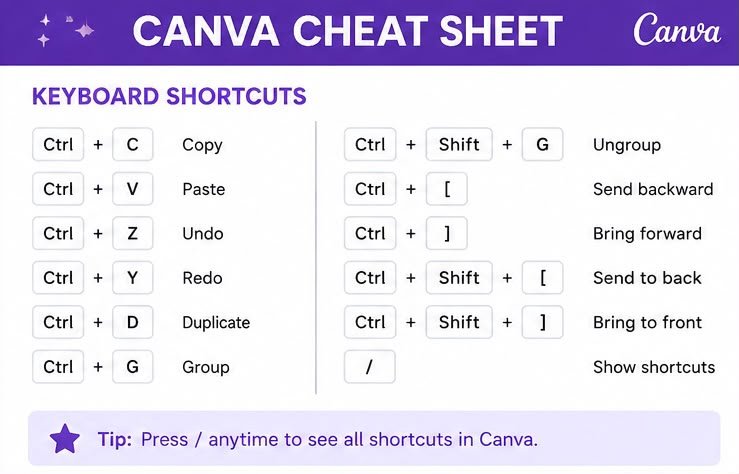
Canva Keyboard Shortcuts
Keyboard shortcuts help speed up workflow significantly.
Important Canva Shortcuts
Duplicate Element
Ctrl + D
Copy
Ctrl + C
Paste
Ctrl + V
Undo
Ctrl + Z
Redo
Ctrl + Y
Group Elements
Ctrl + G
Ungroup Elements
Ctrl + Shift + G
Add Text Box
T
Add Line
L
Add Rectangle
R
Add Circle
C
These shortcuts are among the most useful sections of this Canva Cheat Sheet.
Canva Cheat Sheet for Branding
Brand consistency is essential for businesses.
Brand Kit Components
- Logo
- Brand colors
- Typography
- Design templates
Using Canva Brand Kit ensures all designs remain visually consistent.
Canva Cheat Sheet: Canva Pro Features
Canva Pro offers additional features that improve productivity.
Features Include
- Background remover
- Magic Resize
- Premium templates
- Premium elements
- Brand Kit
- Content planner
- AI-powered tools
Professionals often use Canva Pro to streamline their workflow.
Canva Cheat Sheet for Presentations
Canva presentations are becoming increasingly popular.
Presentation Tips
- Keep slides simple
- Use consistent colors
- Limit text per slide
- Use visuals effectively
- Maintain visual hierarchy
A strong presentation can leave a lasting impression on your audience.
Canva Cheat Sheet for Resume Design
Canva offers excellent resume templates.
Resume Best Practices
- Use professional fonts
- Highlight achievements
- Keep formatting clean
- Include contact details
- Use subtle colors
Students and job seekers can benefit greatly from Canva resume templates.
Canva Cheat Sheet: Canva Video Editing Tips
Canva is no longer limited to graphics.
Video Features
- Video trimming
- Animations
- Transitions
- Audio integration
- Text overlays
Content creators increasingly use Canva for quick video editing.
Canva Cheat Sheet for Freelancers
Freelancers can use Canva to offer multiple services.
Popular Canva Services
- Social media posts
- Instagram carousel design
- Presentation design
- Resume creation
- YouTube thumbnails
- Business flyers
- Marketing materials
Many freelancers build successful careers using Canva alone.
Canva Cheat Sheet: Common Design Mistakes to Avoid
Using Too Many Fonts
Stick to two or three fonts.
Overcrowding Designs
Leave enough white space.
Poor Color Choices
Use complementary colors.
Low-Quality Images
Always use high-resolution visuals.
Inconsistent Branding
Follow brand guidelines consistently.
Avoiding these mistakes can significantly improve design quality.
Canva Cheat Sheet for Productivity
Create Templates
Save reusable templates for future projects.
Organize Folders
Keep projects categorized.
Use Brand Kit
Maintain visual consistency.
Utilize Magic Resize
Repurpose content across platforms.
Save Favorite Elements
Build a personal design library.
Productivity hacks are an important part of every effective Canva Cheat Sheet.
Canva Cheat Sheet: AI Tools in Canva
Canva now includes powerful AI features.
Magic Write
Helps generate content ideas.
Magic Design
Creates designs automatically.
Background Remover
Removes backgrounds instantly.
AI Image Generation
Creates visuals from text prompts.
AI tools continue to make Canva more powerful and user-friendly.
Advanced Canva Cheat Sheet Tips
Use Grid Layouts
Maintain proper alignment.
Follow Visual Hierarchy
Guide the viewer’s attention.
Maintain Consistency
Keep colors and fonts uniform.
Use Contrast Effectively
Improve readability.
Focus on Simplicity
Less is often more.
Professional designers frequently apply these principles to create impactful visuals.
Canva Cheat Sheet for Beginners
If you’re new to Canva:
- Learn basic tools first.
- Start with templates.
- Practice daily.
- Study successful designs.
- Experiment with layouts.
- Learn typography basics.
- Build a design portfolio.
These beginner tips will accelerate your learning journey.
Conclusion: The Ultimate Canva Cheat Sheet
This Canva Cheat Sheet serves as a complete guide for beginners, freelancers, marketers, students, and business owners who want to improve their design skills. By understanding Canva’s tools, shortcuts, templates, branding features, typography principles, and productivity hacks, you can create professional-quality designs in less time.
The best part about using a Canva Cheat Sheet is that it helps eliminate confusion and improves workflow efficiency. Whether you’re creating social media graphics, presentations, marketing materials, resumes, or videos, this Canva Cheat Sheet can become your go-to resource for mastering Canva.
As Canva continues to evolve with AI-powered features and advanced design capabilities, keeping this Canva Cheat Sheet handy will ensure you stay productive, creative, and competitive in the ever-growing digital landscape.